 Curstyle
Import themes
Windows .cur / .ani files, Mousecape .cape files, or Curstyle’s own theme.json. Roles are detected for you.
Import Windows cursor themes or Mousecape .cape files, try them on text, links, and click targets, compare them side by side, then apply.
The quick brown fox jumps over the lazy dog.
Demo cursors are drawn for this page. Real themes come from the files you import.
Windows .cur / .ani files, Mousecape .cape files, or Curstyle’s own theme.json. Roles are detected for you.
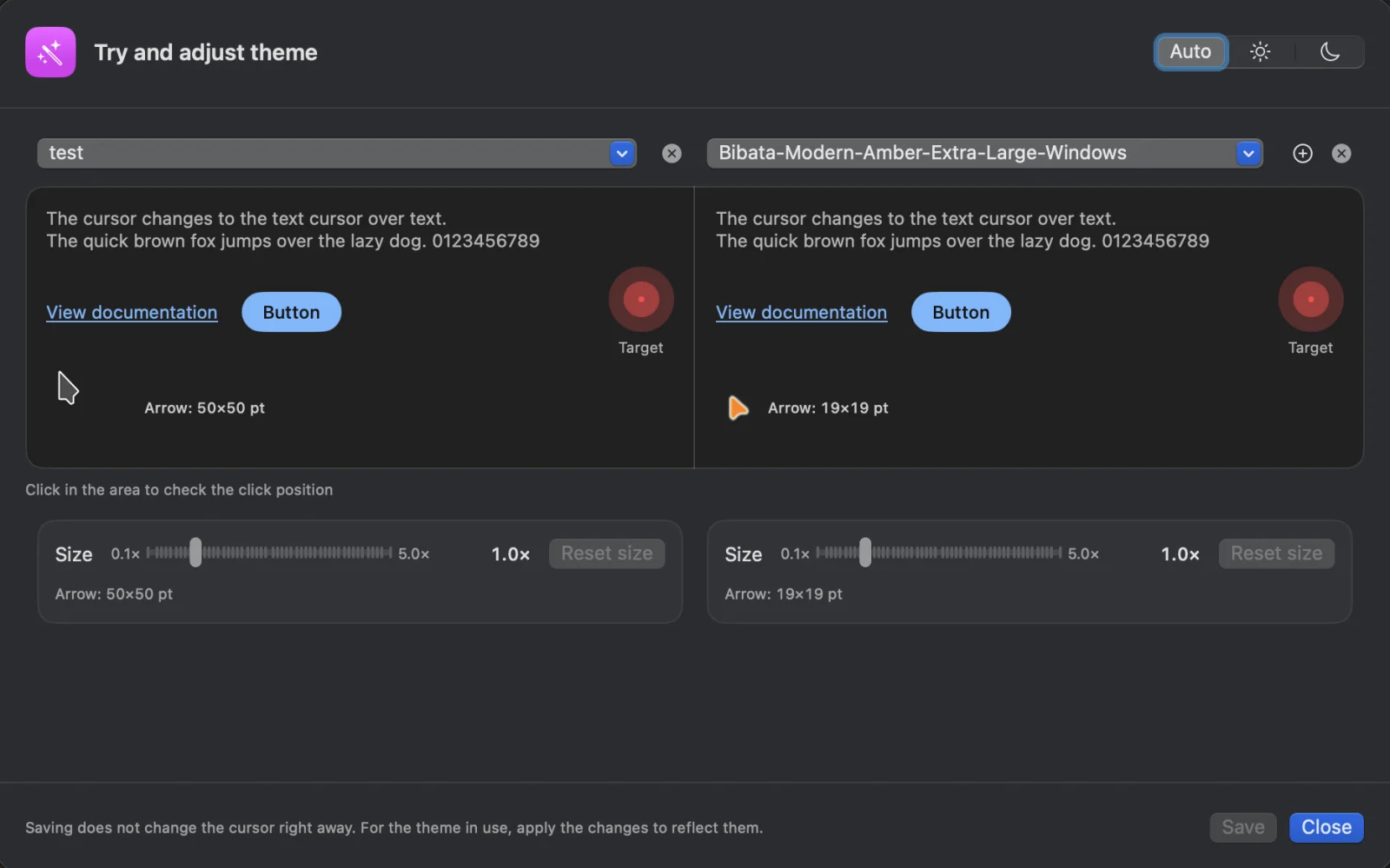
Put up to four themes on the same text, links, buttons, and map sample, each with its own size control and a light or dark background.
Swap a single role with a cursor from another theme or a GIF / PNG, check Current against After, and add roles a theme lacks.
Edit hotspots and animation speed. Undo saved edits one at a time with ⌘Z; history survives restarts.
A background helper reapplies your theme after a restart, login, or pointer setting change, and pauses with a reason if it keeps failing.
Restore the saved defaults from the app, the menu bar, or the CLI, even if the app can’t open. Export a diagnostic report from Settings.
Choose Try it next to the apply button. Add themes with +, move between the sample areas, and resize each one on its own. Your system cursor stays untouched until you decide.
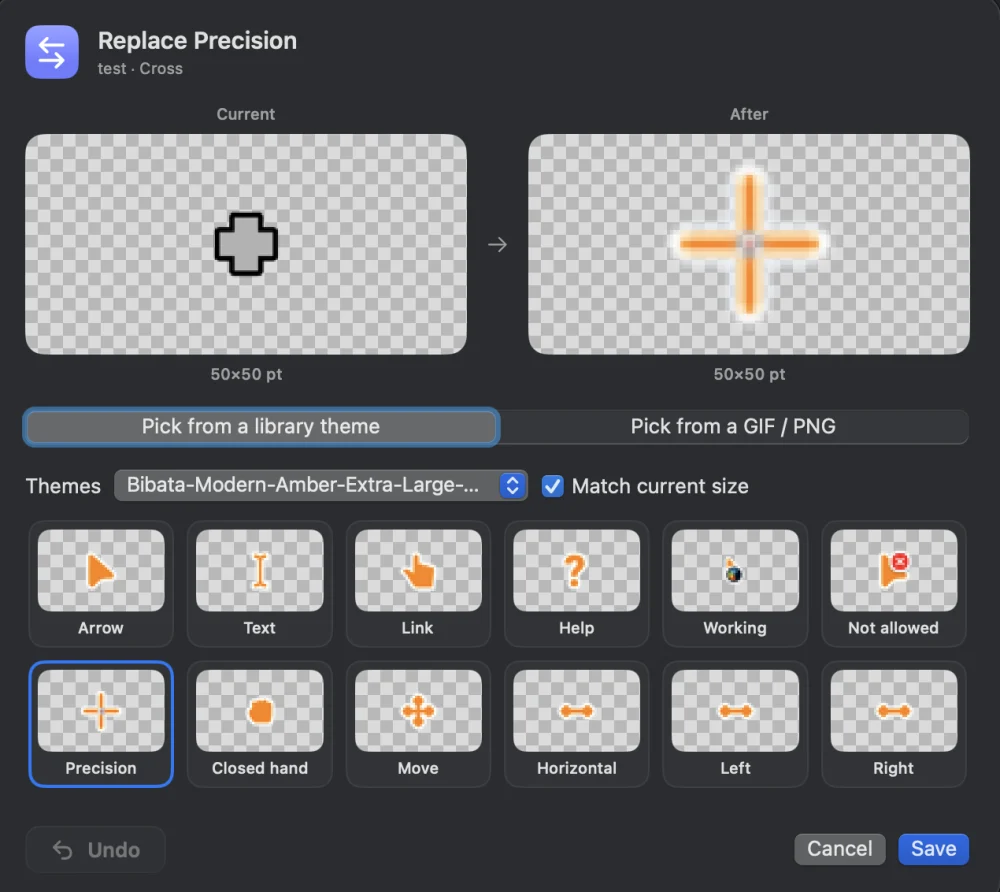
Click a cursor tile, pick a cursor from another library theme or a GIF / PNG file, and compare Current and After before saving.
Apple Silicon only. Latest: v0.2.1 · 2026-11-24
brew install --cask narcissus-tazetta/tap/curstyle Curstyle is distributed without Apple notarization, so macOS may show a security warning. After attempting to launch it, open System Settings → Privacy & Security, choose Open Anyway for Curstyle, and follow the prompts.
Yes. Curstyle saves your default cursors before applying anything. Choose Restore Defaults in the app or the menu bar, or run the bundled CLI’s restore command if the app won’t open. Curstyle also checks that the registered images match your theme and tries to restore the defaults if applying fails.
Releases are Apple Silicon only. The deployment target is macOS 14, but Curstyle uses private macOS APIs, so an OS update may break it. The tested environment is macOS 27.2 on Apple Silicon; Intel has not been tested.
Curstyle is distributed without Apple notarization. Choose Open Anyway under System Settings → Privacy & Security after the first launch attempt. Updates are signed and verified before they replace the app.
Reset pointer colors to their defaults under System Settings → Accessibility → Display → Pointer. Curstyle refuses to apply themes while custom pointer colors are on, and Diagnostics explains the state. Cursors that other apps register on their own, such as the ⌘⇧4 screenshot crosshair, can’t be replaced.
A folder of Windows .cur / .ani files, a Mousecape .cape file, or a folder with Curstyle’s theme.json. GIF and PNG files can replace or add an individual cursor inside a theme.